How I Look for a PPT Generator
AI generation is everywhere right now, and it has already changed a lot of the workflows I used to take for granted. In the past, if I wanted to make a presentation, I would first sketch out the talk in a mind map, then dig through Google for useful images and reference material, and finally open PowerPoint to design the whole deck by hand.
Now, it almost feels possible to type one sentence and get a complete PPT back.
So I tried a few of the common PPT generators and wrote down what the experience actually felt like.
NotebookLM: A Strong Product From a Big Team
NotebookLM really is a good product. It cuts down the time I spend thinking through and listing out an outline. Most of the time, I no longer need to sift through Google Search like I am panning for gold in a river. The information I need feels like it has already been handed to a very capable chef. As long as I know what I want, it can turn the material into different dishes for me.
That feeling is nice. It does not ramble like an ordinary chatbot, and it can also generate all kinds of materials I need. The whole thing feels smooth and pleasant.
Then everything stopped the moment I got to PPT generation.
When I opened the PPT it generated, I realized the slides were just a stack of images. They looked cool. They looked advanced. But when I tried to edit some text in PowerPoint, I found out I simply could not do it, because the slide itself was an image.
So, in practice, NotebookLM took a shortcut. It did not really handle PPT. It just asked AI to generate images, one after another. That was not what I wanted.
Gamma: The PPT Specialist
Gamma is absolutely good at generating presentations. When I used it, it created a deck that genuinely surprised me with almost no effort on my side. I am pretty sure I could spend a whole week on the same deck and still not make something better. Gamma did it in about ten minutes.
And yes, it was editable.
At that point, it almost felt like the story was over. Gamma looked like the best answer. But then I remembered one small detail: the PPT was generated from a Word document I uploaded, and that Word document came from NotebookLM.
So does that mean I have to use NotebookLM to shape the content first, and then use Gamma to generate the PPT? If I keep paying for all these services every month, I suspect my wallet will try to strangle me in my sleep.
PPT-Master: A Geeky PPT Expert
I also found PPT-Master, an open-source project that can generate real PPTX files. It depends on Claude Code. In other words, it can turn your Claude Code setup into a serious presentation-making machine.
Through something called a Skill, you can add web search, document handling, and all kinds of abilities to the AI. Suddenly the AI starts to feel like a very serious transformer.
The results are indeed pretty good. But running it is also genuinely tiring. Most of my time was not spent designing the presentation. It was spent installing Skills and talking to the AI. I felt like my keyboard was about to catch fire.
The Final Answer: Building PPT Generation Into JoyfulWords
So what I really wanted was this: a tool that collects and organizes information as conveniently as NotebookLM, generates beautiful PPTs like Gamma, and still lets me do everything through a mouse and a visual interface.
Inside JoyfulWords, all of this is brought together and kept within reach. I only need to move my mouse a little, and the whole workflow is there.
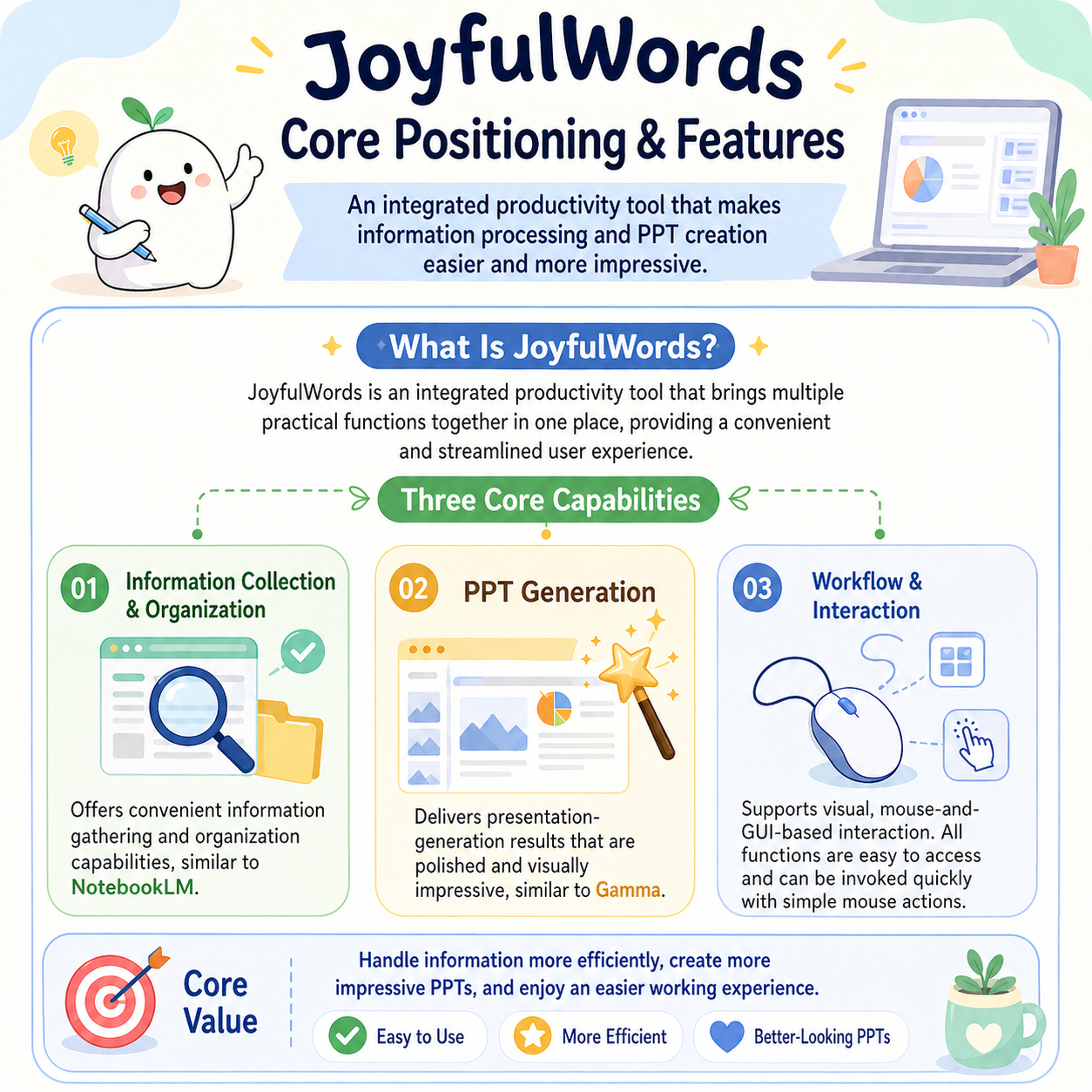
First, I use Search to find materials and add the useful ones to my material library. Then I ask AI to write a first draft for me. I can keep editing the article, add more details, and use AI to generate images that fit the content.
None of this requires switching to another tool.
When the message is finally shaped the way I want, I click Generate PPT, then go make myself a cup of coffee.
In the background, AI plans the outline and generates the deck. Because the article was written and edited by me, it does not have that awkward AI flavor. It says what I actually want to say. And the final PPT can be opened directly in PowerPoint.
Yes, there is no shortcut trick here. It is not a picture. It is not a web page pretending to be a slide. I can still add animations in PowerPoint, polish the details, and keep refining it.
This may not be a perfect solution, but it gives as much control as possible back to the person doing the work. We do not have to sit there waiting for AI to produce something and then pray everything turns out fine.
AI is a partner in the workflow. The final decision, and the final style, still stay firmly in my hands.
That is it. If this helped you in any way, then I hope it gives you a good morning, a good afternoon, and a good night.
Bye bye.
Written with Joyful Words: https://joyword.link